
STATUS IS UPWEBSITE OPTIMIZATION WIKI
09Enable
Design and UX / Enable

Website Navigation Best Practices for Findability

Plan paths, make routes operable, and preflight changes.

Website Navigation Best Practices for Findability — VISUAL GUIDE
READ
8 minutes
SOURCES
7
REVALIDATE
2027-03-27
reviewed
Accessibility-aware UX and release-readiness reviewer
THE SHORT ANSWER

Start with the decision.

Start with visitor tasks, not internal departments or every page. Put the sections that support those tasks in a stable order, use labels that predict the destination, and use page-level links for detail. Visitors should reach their next action without guessing.

Make paths work with keyboard, touch, and rendered HTML links. Test real tasks on a small screen and after deployment. At SIU, navigation work is proactive uptime optimization: preflight critical paths, correct broken routes before customers encounter them, and retain a rollback route for risky releases.

VISUAL GUIDE

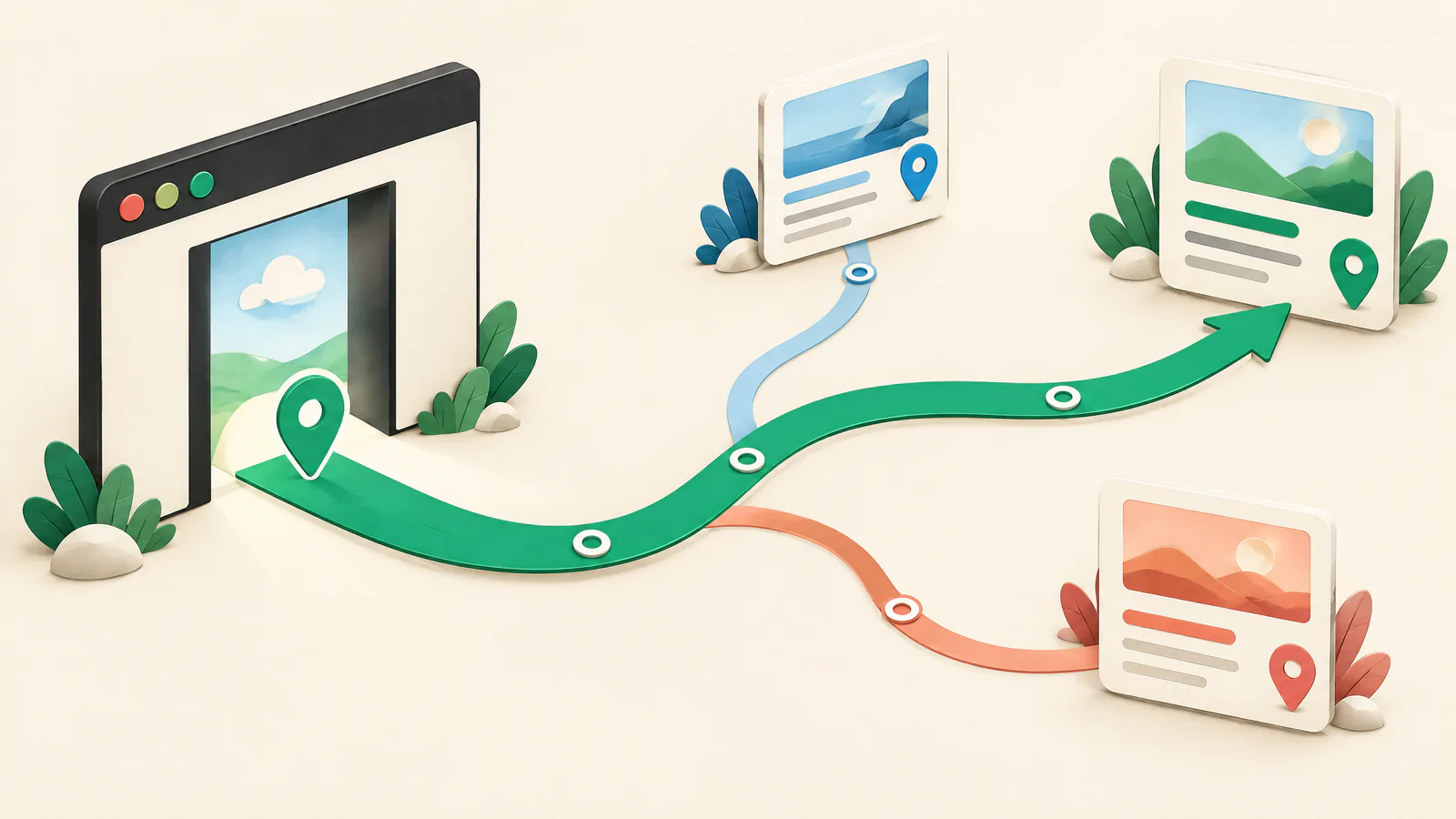
See the work as a system.

Use this map to connect the article’s decisions before acting on individual tactics.

SIUEnable
01Begin with tasks and a small information architecture
02Use labels that predict the destination
03Make destinations crawlable and structurally clear
04Design the mobile menu as a complete interaction
01

Begin with tasks and a small information architecture

Information architecture is how content and functions are grouped, named, and connected. List visitor tasks, then map each task’s starting page, next page, and successful end state. This shows whether a menu item is useful or an internal label visitors must decode. Keep primary navigation focused on sections that begin those tasks.

Navigation is not a site map. GOV.UK advises listing useful top-level sections rather than every part of a service. When a journey has a required order, show it in content or a task list instead of making people infer it from a global menu.

Group by user goal

Put pages together when visitors expect the same answer or task, not because one team owns them.

Keep a shallow first layer

Use landing pages and contextual links for detail instead of a dense header.

02

Use labels that predict the destination

A label is a promise about what follows. Prefer familiar names such as “Pricing”, “Documentation”, “Get support”, or “Manage account” when they match the destination. Avoid vague labels such as “Resources” or “Explore” unless visitors can predict the contents. Keep wording and order consistent.

Google advises concise, relevant link text that is understandable out of context. Generic “click here” and keyword-stuffed links do neither. Give an icon-only control an accessible name that describes its action.

Name the outcome

Use “View plans” rather than “Learn more” when the destination is plans.

Show location

Mark the active destination visually and programmatically; W3C describes aria-current=page for the displayed page.

03

Make destinations crawlable and structurally clear

A navigation destination should normally be an HTML anchor with an href that resolves to a real web address. Google says it can generally crawl this form, including dynamically inserted anchors when rendered markup retains that structure. A click handler or custom attribute alone is not a dependable substitute. Inspect rendered output, not only framework source.

Use semantic structure around major navigation. W3C recommends a nav element and, for ordinary site navigation, a list. If a page has several navigation regions, label each so a screen-reader user can distinguish primary navigation from footer or local navigation.

Check the output

Confirm important desktop and mobile destinations have anchors and href values after client-side rendering.

Use Search Console carefully

URL Inspection provides Google crawl, index, and serving information; it does not prove that visitors can find a page.

04

Design the mobile menu as a complete interaction

Responsive navigation may collapse, but destinations that remain should keep the same wording, order, and target across screen sizes. W3C permits collapsing or hiding items in subnavigation while calling for consistency. Do not make a critical route desktop-only because the header is crowded; relocate lower-priority material or reconsider the hierarchy.

For a show-and-hide menu, use a button to control the link group and communicate whether it is open. W3C’s disclosure-navigation example uses aria-expanded and aria-controls and documents Tab, Shift+Tab, and Escape. It is instructional, so test your component with the combinations your audience uses.

Separate two actions

When a parent page and its child links are both needed, distinguish the page link from the control that expands it.

Avoid hover-only access

Anything revealed by pointer hover must be discoverable with keyboard focus and touch.

05

Support orientation and keyboard travel

Keyboard access is not a finishing touch. WCAG 2.1 Success Criterion 2.1.1 requires functionality to be operable through a keyboard interface except for path-dependent input. In a header, visitors should be able to Tab through controls, see focus, activate links and buttons, and move away without a trap.

Repeated header links can make pages slow to traverse. A skip link near the beginning gives keyboard users a route to main content. GOV.UK explains that it is visually hidden until keyboard use activates it. Test that it lands on a meaningful target.

Keep focus visible

Do not remove the browser focus indicator without a clear alternative that remains visible when zoomed.

Run the route

Use Tab, Shift+Tab, Enter, Space, and Escape from the header into the destination page.

06

Test findability before and after release

Ask representative people to complete a realistic task, such as finding cancellation guidance or comparing plans. Watch where they expect to go, which labels they misread, and whether they resort to search because navigation failed them. Do not lead them to the intended label. Record each barrier and the smallest change likely to remove it.

Pair task testing with technical checks. W3C’s Easy Checks recommends testing without a mouse, including focus visibility, tab order, keyboard traps, and dropdowns. Repeat core tasks at narrow widths and larger text sizes. Automated checks can flag markup issues, but cannot establish that a label makes sense.

Define success first

Record the intended endpoint and supported device or input method before testing.

Compare versions fairly

Test the old and new route against the same tasks rather than relying on stakeholder preference.

07

Treat navigation changes as availability-sensitive releases

A header can load while a critical path is effectively unavailable: a checkout, login, support route, or documentation page may sit behind a broken state, stale link, or wrong redirect. Before release, inventory critical destinations, test desktop and mobile routes, and confirm rendered links reach the intended page. Use authorized environments for authenticated or regional paths.

SIU’s role is proactive remediation: run a preflight, verify essential paths after deployment, and make correction reversible. Keep a versioned menu configuration, name the person who can restore it, and validate restored paths. This limits release impact; it does not replace usability research or live-status monitoring.

Set a release gate

Block publication when a critical destination is missing, wrong, or cannot be reached with keyboard and touch.

Prepare rollback

Document the prior configuration, owner, trigger, and validation steps before restructuring.

ACTION / VERIFY

Your practical to-do guide.

  1. 01

    List priority visitor tasks

    Map starting page, route, and end state for each important outcome.

    VERIFY: A teammate can trace every task without referring to internal org charts.
  2. 02

    Reduce primary choices

    Keep distinct high-value sections in header; move detail to landing pages or contextual links.

    VERIFY: Every primary label supports a specific visitor task.
  3. 03

    Rewrite vague labels

    Replace generic prompts and internal terminology with destination-focused wording.

    VERIFY: A newcomer can predict what each label will open.
  4. 04

    Validate rendered links

    Inspect desktop and mobile navigation after rendering.

    VERIFY: Every critical route is an anchor with a usable href.
  5. 05

    Exercise the mobile disclosure

    Open, close, and traverse compact menu with touch and keyboard.

    VERIFY: Its state is communicated, Escape closes it, and no needed route is desktop-only.
  6. 06

    Run a keyboard-only pass

    Put mouse aside and use Tab, Shift+Tab, Enter, Space, and Escape.

    VERIFY: Focus is visible, logical, complete, and never trapped.
  7. 07

    Verify a skip link

    Provide route past substantial repeated navigation to main content.

    VERIFY: The link appears on keyboard focus and moves to useful main content.
  8. 08

    Observe task completion

    Test realistic findability tasks on interfaces you support.

    VERIFY: Observed confusion and detours are prioritized and retested.
  9. 09

    Preflight and make reversal ready

    Before release, test critical paths, assign an owner, and retain prior configuration.

    VERIFY: A documented rollback can restore and recheck the previous navigation.
DISCUSSION TOPICS

Compare the trade-offs, not private data.

Use these prompts with your team or website-owner community. Share methods and lessons, but never paste credentials, customer records, or non-public infrastructure details.

  1. 01

    Which labels create the most disagreement between your team and first-time visitors, and how could a task test settle it?

  2. 02

    What critical customer task depends on navigation rather than search, and how would you verify that path after release?

  3. 03

    When a mobile menu is crowded, what information-architecture decision would you make before adding another level?

POPULAR / AUTHORITATIVE RESOURCES

Open the source material.

Google Search CentralLink best practices for Google ↗

Official guidance on crawlable anchors, href values, and descriptive link text.

Reviewed 2026-09-27
W3C Web Accessibility InitiativeMenu Structure ↗

Semantic nav and list structure, labels, current-page indication, and responsive consistency.

Reviewed 2026-09-27
W3C Web Accessibility InitiativeExample Disclosure Navigation Menu ↗

Disclosure states, keyboard support, and production-testing caution.

Reviewed 2026-09-27
GOV.UK Design SystemHelp users to Navigate a service ↗

Task-oriented hierarchy and advice against navigation as a site map.

Reviewed 2026-09-27
W3C Web Accessibility InitiativeEasy Checks – A First Review of Web Accessibility ↗

Manual checks for focus, order, traps, and dropdowns.

Reviewed 2026-09-27
W3C Web Accessibility InitiativeUnderstanding Success Criterion 2.1.1: Keyboard ↗

Keyboard-operability expectations and accessibility purpose.

Reviewed 2026-09-27
GOV.UK Design SystemSkip link ↗

Purpose and behavior of a bypass link to main content.

Reviewed 2026-09-27

Source policy. Claims use the official Google, W3C, and GOV.UK resources listed above, read on the access date. Internal and SID links are related navigation, not evidence.

QUICK CLARIFICATIONS

Common questions.

How many links should a primary navigation have?

There is no universal number. Keep the first layer to distinct sections that start high-value tasks. If labels become vague or visitors must scan a long row, use landing pages, contextual links, or a revised hierarchy rather than treating the header as a site map.

Should a mobile menu contain exactly the same links as desktop navigation?

Destinations that remain should keep the same order, wording, and target across screen sizes. You can relocate lower-priority material, but do not hide a critical route only because mobile space is constrained. Test the task path on a small screen.

Are JavaScript navigation links bad for SEO or accessibility?

Not automatically. Google says dynamically inserted anchors can be crawlable when rendered markup uses an anchor with an href. The risk is replacing a destination link with a script event or custom control. Inspect output and test keyboard and touch interaction.

Status Is UP Editorial Team · Uptime Enablement Editors

Reviewed by Accessibility-aware UX and release-readiness reviewer. Published 2026-09-27; updated 2026-09-30.