
STATUS IS UPWEBSITE OPTIMIZATION WIKI
14Enable
Design and UX / Enable

Website Accessibility Checklist for Owners

A practical owner process for reviewing essential journeys, fixing barriers, and using WCAG 2.2 without mistaking a scan for compliance.

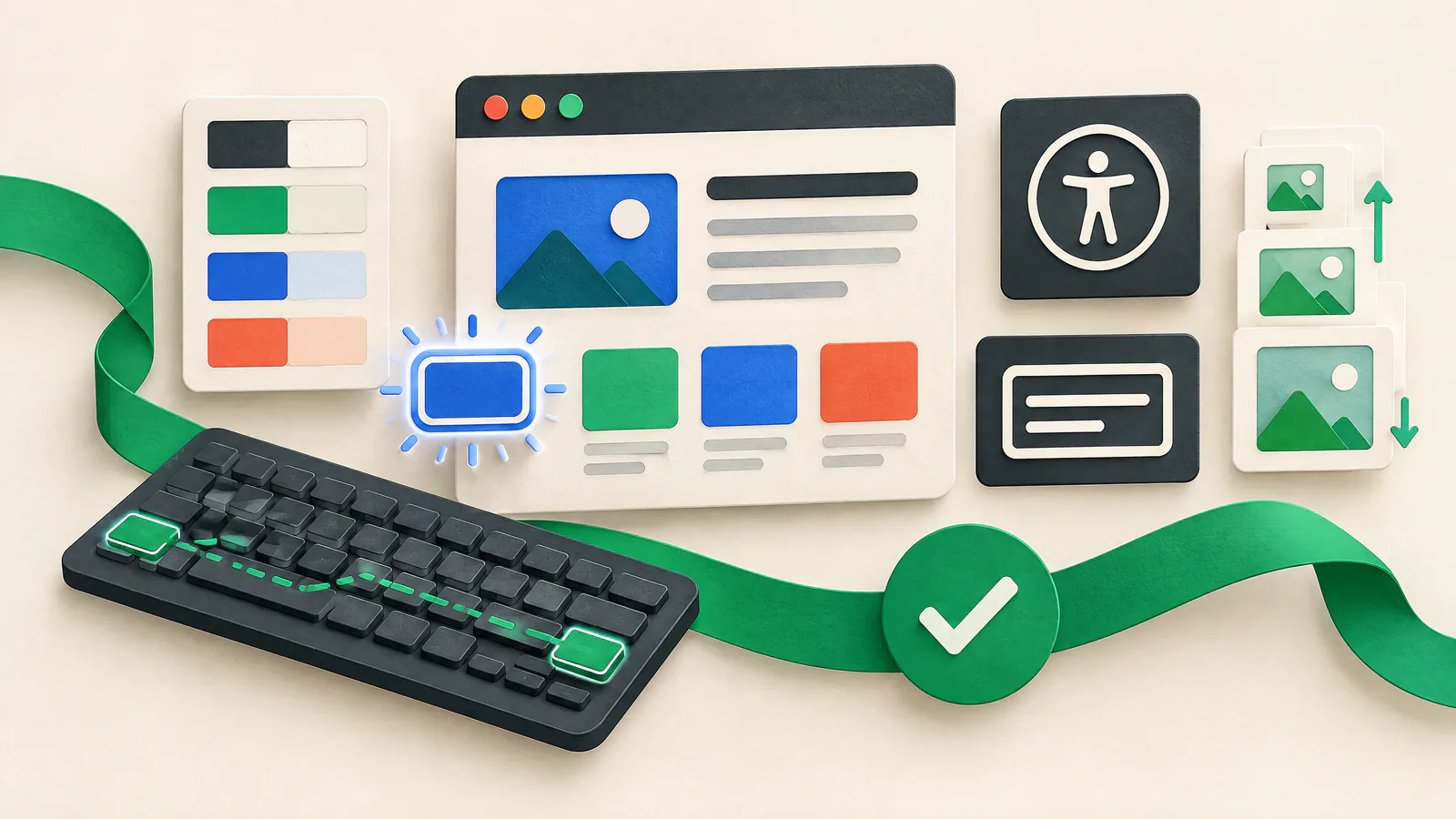
Website Accessibility Checklist for Owners — VISUAL GUIDE
READ
7 minutes
SOURCES
5
REVALIDATE
2027-03-27
reviewed
Accessibility specialist and web quality reviewer
THE SHORT ANSWER

Start with the decision.

Use this website accessibility checklist on the customer journeys that matter most: finding information, contacting you, signing in, booking, buying, and getting help. Set a WCAG 2.2 target, sample the templates and states in those journeys, then test with a keyboard, zoom, content review, and an automated checker. Turn each finding into a specific fix with an owner and retest it after release.

A clean scan or a quick page review is not proof of accessibility or compliance. W3C says no tool alone can determine whether a site meets accessibility standards, and its quick checks are not exhaustive. SIU can support proactive pre-launch review and remediation; it is not a WCAG certification, legal opinion, or guarantee that every visitor can use every third-party service.

VISUAL GUIDE

See the work as a system.

Use this map to connect the article’s decisions before acting on individual tactics.

SIUEnable
011. Define the review scope
022. Test the keyboard path
033. Check structure and clear meaning
044. Stress text, layout, color, and media
01

1. Define the review scope

Start with complete outcomes, not random URLs. Map the home page, key content, search, contact, account, booking or checkout, confirmation, help, and every embedded service used on the route. Include reusable navigation, modals, cookie controls, and forms because one defect can repeat across the site.

Set a target

Record the WCAG version and level, coverage, browsers, devices, and known exclusions.

Treat journeys as complete

Review every step and state, including signed-in, empty, and error views.

02

2. Test the keyboard path

Complete each selected task without a pointer. Tab and Shift+Tab through links, controls, dialogs, menus, filters, date pickers, media, and vendor widgets. Focus should be visible, follow a sensible order, never get trapped, and return to a useful place after a dialog closes. Keyboard operation is central to WCAG; do not assume a custom mouse control works by keyboard.

Bypass repetition

Provide and test a way to reach main content without tabbing through repeated navigation.

Check drag interactions

Where an interface needs dragging, review whether an applicable non-drag alternative is available.

03

3. Check structure and clear meaning

Give pages descriptive titles and use headings for hierarchy, not appearance. Check that controls expose a useful name, role, and state to assistive technology; native HTML controls often reduce risk. Meaningful images need concise alternative text for their purpose, while decorative images should not add noise. Do not use color alone for status or instructions, and identify the page language.

Review link purpose

Make destinations or actions understandable in context; repeated vague links create ambiguity.

Check source order

When layout changes or styles are unavailable, content and controls should still read logically.

04

4. Stress text, layout, color, and media

Increase browser zoom and text size, then repeat key tasks. Content should remain readable and usable rather than collide, disappear, or become an unintended horizontal hunt. Check the actual color pairs for text, controls, focus, errors, and charts in relevant states. For recorded media, provide captions for needed audio information and text alternatives appropriate to the content.

Test more than the default

Include hover, focus, disabled, error, and any dark or alternate visual state.

Review media controls

Keyboard-test the player as well as captions, transcripts, and essential visual information.

05

5. Make forms and account tasks recoverable

Submit missing, malformed, and valid data through your highest-value forms. Inputs need persistent, programmatically associated labels; placeholders alone are not a reliable substitute. Identify required fields before submission, explain what is wrong in plain language, point to the field, and preserve entered data where possible. Test sign-in, password reset, one-time codes, checkout, and confirmation as journeys.

Avoid color-only errors

Pair error color with a plain-language message and an identifiable affected field.

Test vendor boundaries

Keyboard-test the handoff, redirect, failure path, and return from payment or identity providers.

06

6. Combine tools with people and manual review

Run an automated checker on representative pages and use its findings as leads, not a pass certificate. Tools cannot judge whether alternative text is meaningful, an order makes sense, instructions are understandable, or a journey works with assistive technology. Add manual keyboard and zoom checks plus a targeted screen-reader review. When possible, involve people with relevant lived experience early and compensate them fairly.

Keep evidence together

Save tool output, reviewer notes, decisions, remediation, and retest results in one issue record.

Escalate proportionately

Use a qualified evaluator for formal claims, regulated services, complex applications, or disputed results.

07

7. Build remediation into releases

Accessibility can regress after a theme, campaign, plugin, script, design-token, or vendor change. Add a proportional review to design, content, quality assurance, and launch work. SIU focuses on proactive uptime optimization and remediation: maintain a pre-launch path, identify customer-facing defects, make safe fixes, and use a rollback plan when needed. Accessibility review complements that work; it is not replaced by availability checks or outage alerts.

Set blockers

Block a release when a primary task cannot be completed by keyboard or a critical error cannot be understood.

Retest in context

Check the original task, mobile and error states after a fix before closing the issue.

ACTION / VERIFY

Your practical to-do guide.

  1. 01

    Set the target

    Record WCAG version and level, scope, owners, and when specialist review is needed.

    VERIFY: A one-page scope names key journeys, coverage, exclusions, and decision makers.
  2. 02

    Map journeys

    List start-to-finish routes for information, contact, account, purchase or booking, payment, confirmation, and support.

    VERIFY: Each critical task has representative pages and states selected.
  3. 03

    Run a baseline scan

    Use an automated checker, then assign or document every finding.

    VERIFY: Reports are in the issue log; no scan is recorded as certification.
  4. 04

    Use only a keyboard

    Navigate menus, dialogs, forms, widgets, errors, and confirmations without a pointer.

    VERIFY: Focus is visible, order is logical, and no required action traps the user.
  5. 05

    Review meaning

    Check titles, headings, labels, links, image alternatives, language, and non-color cues.

    VERIFY: Controls and content remain understandable beyond their visual treatment.
  6. 06

    Adjust the display

    Test zoom, text size, contrast, focus and error states, and media alternatives.

    VERIFY: Core tasks remain readable and usable under the tested adjustments.
  7. 07

    Exercise recovery

    Submit invalid and valid form data; test login, reset, authentication, and irreversible actions.

    VERIFY: Errors identify a correction path without avoidable loss of entered data.
  8. 08

    Test suppliers

    Follow embedded or redirected payment and identity experiences as a customer would.

    VERIFY: Open vendor barriers have evidence, an owner, and an escalation path.
  9. 09

    Fix and retest

    Prioritize blockers in essential tasks, remediate, and retest the original context.

    VERIFY: Closed issues include a retest result; open items have an owner and target date.
  10. 10

    Make it repeatable

    Put the relevant checks into publishing, quality assurance, and release procedures.

    VERIFY: The release record names the review performed and what changed.
DISCUSSION TOPICS

Compare the trade-offs, not private data.

Use these prompts with your team or website-owner community. Share methods and lessons, but never paste credentials, customer records, or non-public infrastructure details.

  1. 01

    Which customer journey would be most harmful to lose for keyboard users, and who owns its next review?

  2. 02

    What evidence helps your team separate a useful automated finding from a claim needing manual or specialist review?

  3. 03

    How can design, content, engineering, and vendor teams share barriers without exposing customer or security-sensitive data?

POPULAR / AUTHORITATIVE RESOURCES

Open the source material.

World Wide Web Consortium (W3C)Web Content Accessibility Guidelines (WCAG) 2.2 ↗

The normative standard for principles, success criteria, levels, and conformance scope.

Reviewed 2026-09-27
W3C Web Accessibility InitiativeEasy Checks – A First Review of Web Accessibility ↗

A practical starting point for basic checks and their stated limits.

Reviewed 2026-09-27
W3C Web Accessibility InitiativeEvaluating Web Accessibility Overview ↗

Explains why tools need knowledgeable human evaluation and links to evaluation resources.

Reviewed 2026-09-27
W3C Web Accessibility InitiativeHow to Meet WCAG (Quick Reference) ↗

Filter WCAG 2.2 criteria and guidance by level, technology, role, and topic.

Reviewed 2026-09-27
MDN Web DocsAccessibility tooling and assistive technology ↗

Practical background on tooling, accessibility trees, screen readers, and user testing.

Reviewed 2026-09-27

Source policy. Sources were read before drafting. This article favors W3C/WAI standards and evaluation guidance, with MDN implementation education. SIU links are navigation, not evidence. Formal conformance, legal, security, payment, and contractual decisions need qualified review.

QUICK CLARIFICATIONS

Common questions.

Is an automated accessibility scan enough to say a website is accessible?

No. It can find some repeatable issues, but cannot determine many context-dependent barriers. Combine tools with manual testing and, when risk warrants it, qualified evaluation and informed user feedback.

Should an owner target WCAG 2.2 AA?

AA includes Levels A and AA and is a useful decision framework, but the target depends on applicable requirements, contracts, audience, and service risk. A partial review does not support a conformance claim; seek qualified accessibility and appropriate legal advice when one is needed.

Who is responsible when an embedded vendor tool is inaccessible?

The supplier may control the code, but the customer experiences the combined journey. Test the handoff, document barriers, request remediation, and consider alternatives or mitigations. Vendor documentation alone does not prove the real journey is usable.

Status Is UP Editorial Team · Uptime Enablement Editors

Reviewed by Accessibility specialist and web quality reviewer. Published 2026-09-27; updated 2026-09-30.